2.2 Accessibility Checker in Microsoft applications
Using accessibility checker

The Accessibility Checker checks your file against a set of criteria to find any potential problems for making the it accessible.
Then the Accessibility Checker classifies each problem as an error, warning, or tip. Then information on Why to fix is also provided to make you understand the accessibility issue.
-
Problem in the document that makes it difficult or impossible to read and understand for people with disabilities is classified as an Error
-
A problem in the document in most (but not all) cases makes the document difficult to understand for people with disabilities is classified as a Warning
-
A suggestion that will help to improve the user’s experience and make the document readable and accessible is classified as a Tip
If you are using Windows machine,
Click on File in MS Word / MS PowerPoint application
Click on Info
Click on small downward arrow Check for any issues and select check Accessibility
A window opens with issues (errors, warnings and tips) and fix options if there are any issues or the text in window says no accessibility issues found.
Or You can access the Accessibility checker from Review Menu
Or you can access Accessibility checker from the search option above menu bar of MS Word / MS PowerPoint application too

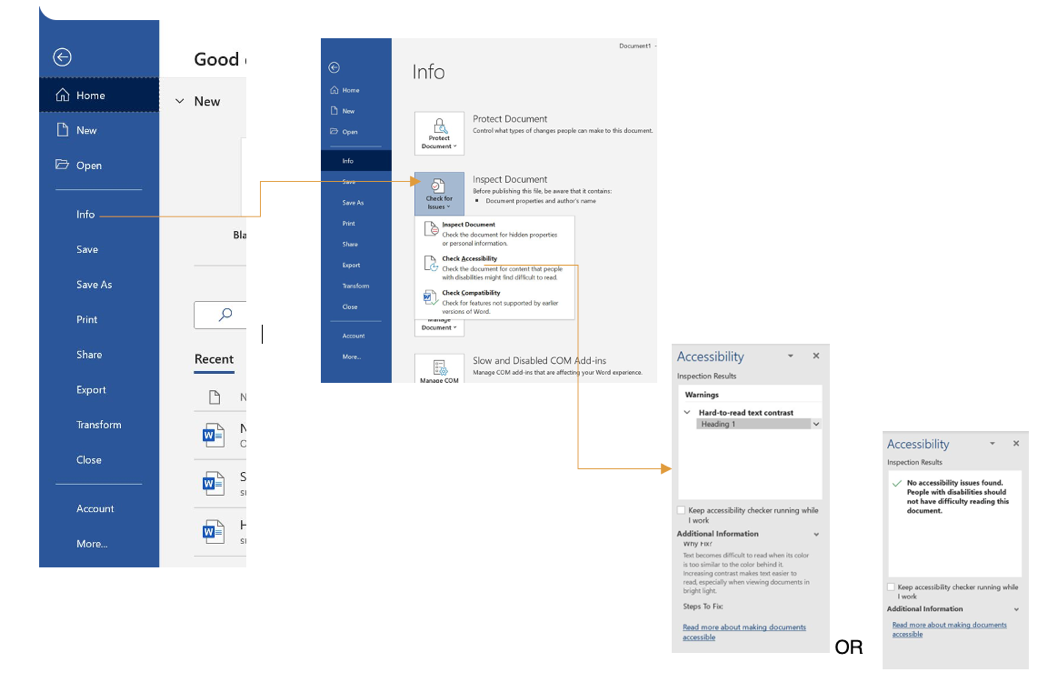
- Click File
- Click Info
- Click Check for Issues
- Click Check Accessibility
6. If you are using MAC system you can access the Accessibility checker from Tools menu

